How it works
One code, every room, the screens you already own
Each location gets one access code. Staff connect a room's tablet or laptop with it, each device plays its own station (or casts it to a TV), and the plan is sized by how many devices play at once.
The owner or administrator starts a 14-day trial for the location at elemusic.fm (card required, nothing due today) and gets one 8-character access code. Staff open elemusic.fm/play on each room's tablet or laptop, enter the code and pick a station, which the device can also cast to a TV. They need no account. From the Rooms panel, the office sees what every connected room is playing and can change its station, play, pause or skip.
These steps apply to every location running staff-operated background music: dental practices, clinics, massage studios and spas, acupuncture clinics, hotels and schools. Check the guide for your setting for room suggestions and purchasing considerations. The plan names Practice and Clinic describe device allowances; they do not limit the product to dental offices.
How do you set up eleMusic at your location?
Setup takes five steps. Only the owner or administrator needs an account, for steps 1, 2 and 5; room devices join with the access code.
Start a trial for the location
The owner or administrator chooses Start a 14-day trial, which opens the player on its "Set up your location" form, and creates an account with Google or with an email and password. Name the location (the name goes on its certificate), agree to the Terms of Service on the organization's behalf, then answer one question: "How many devices will play at the same time?" Count devices, not rooms: a tablet feeding the speakers in several rooms counts once. Choose monthly or annual billing, and the player suggests the plan that costs least for that number; you can pick a different plan yourself. 14-day trial. Card required, nothing due at checkout. Unless you cancel before the trial ends, the card is charged the plan price when it ends.
Copy the access code
Manage locations shows the location's code under Room access. It is 8 characters of capital letters and numbers, and it never uses O, 0, I or 1, so it is easy to read aloud. Copy it and give it to the team.
Connect each room
On the tablet or laptop that feeds a room's speakers or casts to its TV, open elemusic.fm/play. Under "Play music in this room", enter the access code, add a room name if you like (for example, Reception or Treatment room 2) and choose "Connect this room". Staff need no account, email or password. No microphone, no patient information, ever.
Pick a station for each device
On the room's screen, a card reads "Ready" and "Choose a station below"; tap one of the 8 music station tiles under it. Each device keeps its own station, and authorized staff can change it on the device. To hear them first, play a 30 second preview of every station.
Manage the rooms from the office
Back at the front desk, the owner or administrator signs in and opens Manage locations. The Rooms panel at the top lists every connected room. The music does not start or stop on a schedule today. At closing, Pause all pauses every connected room. In the morning, Play all starts the rooms whose devices stayed on with the player open. A device that was switched off or went to sleep needs waking and the player opened again, and some browsers then ask for one tap.
What does eleMusic look like on a device?
On a room device, eleMusic is a player page in the browser: station tiles with their artwork until staff pick one, then a now-playing card above them. The owner or administrator sees every connected room in the Rooms panel. These screens show the player at the width of a tablet held upright.
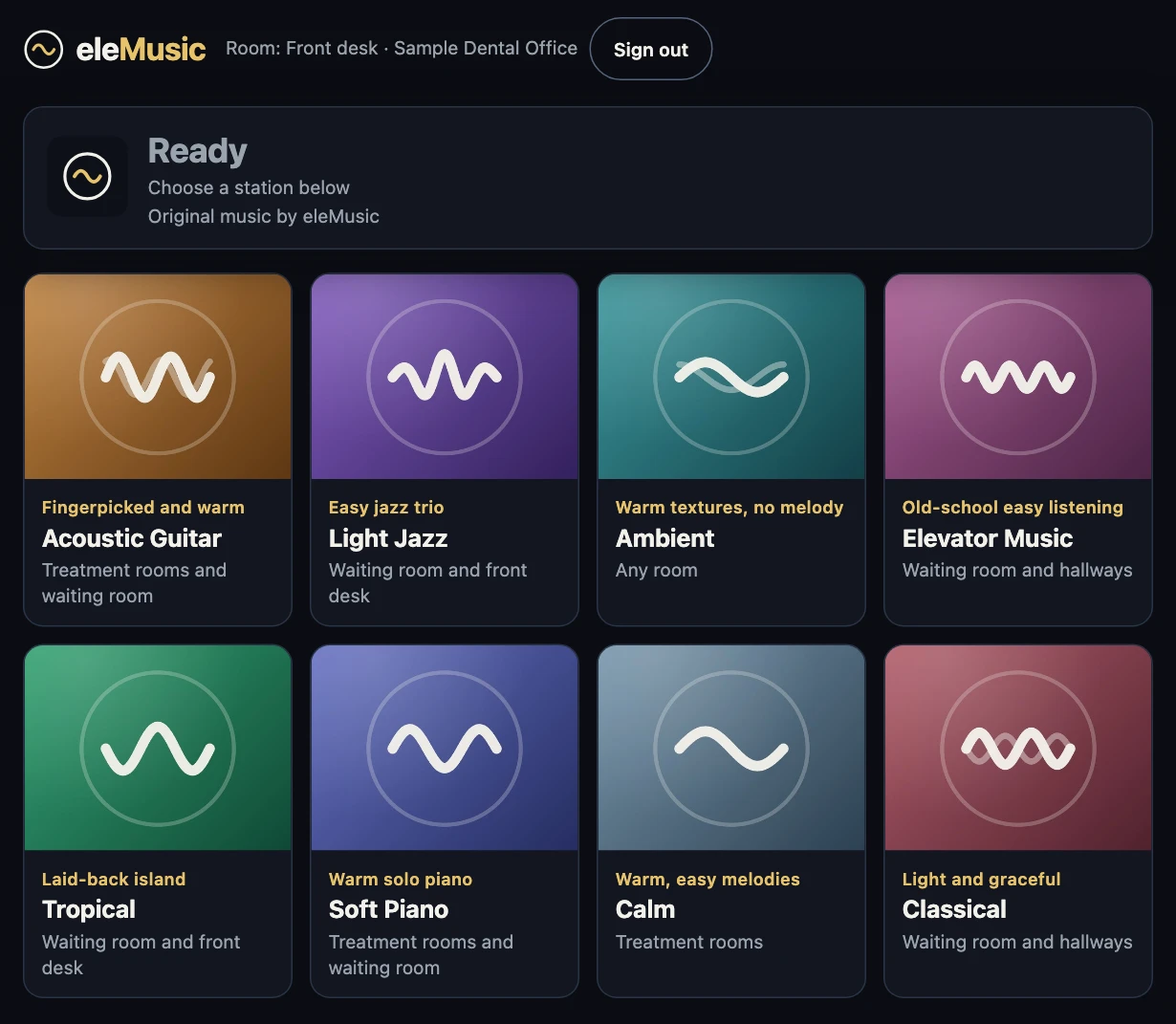
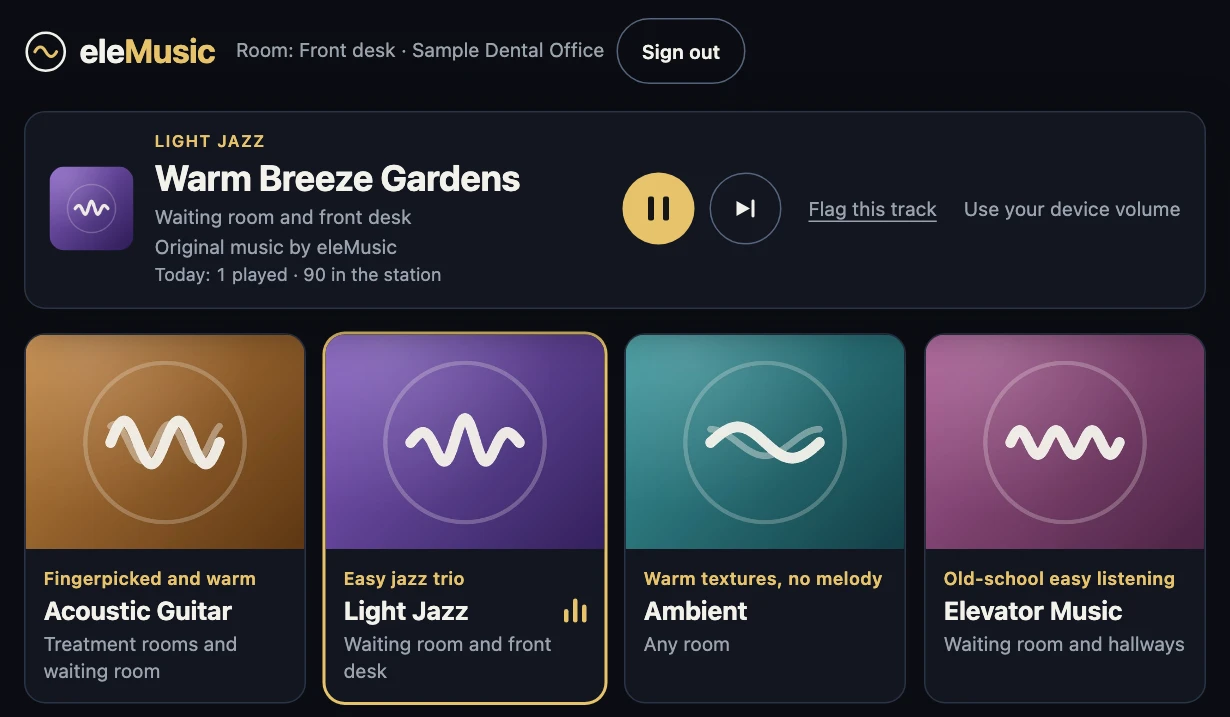
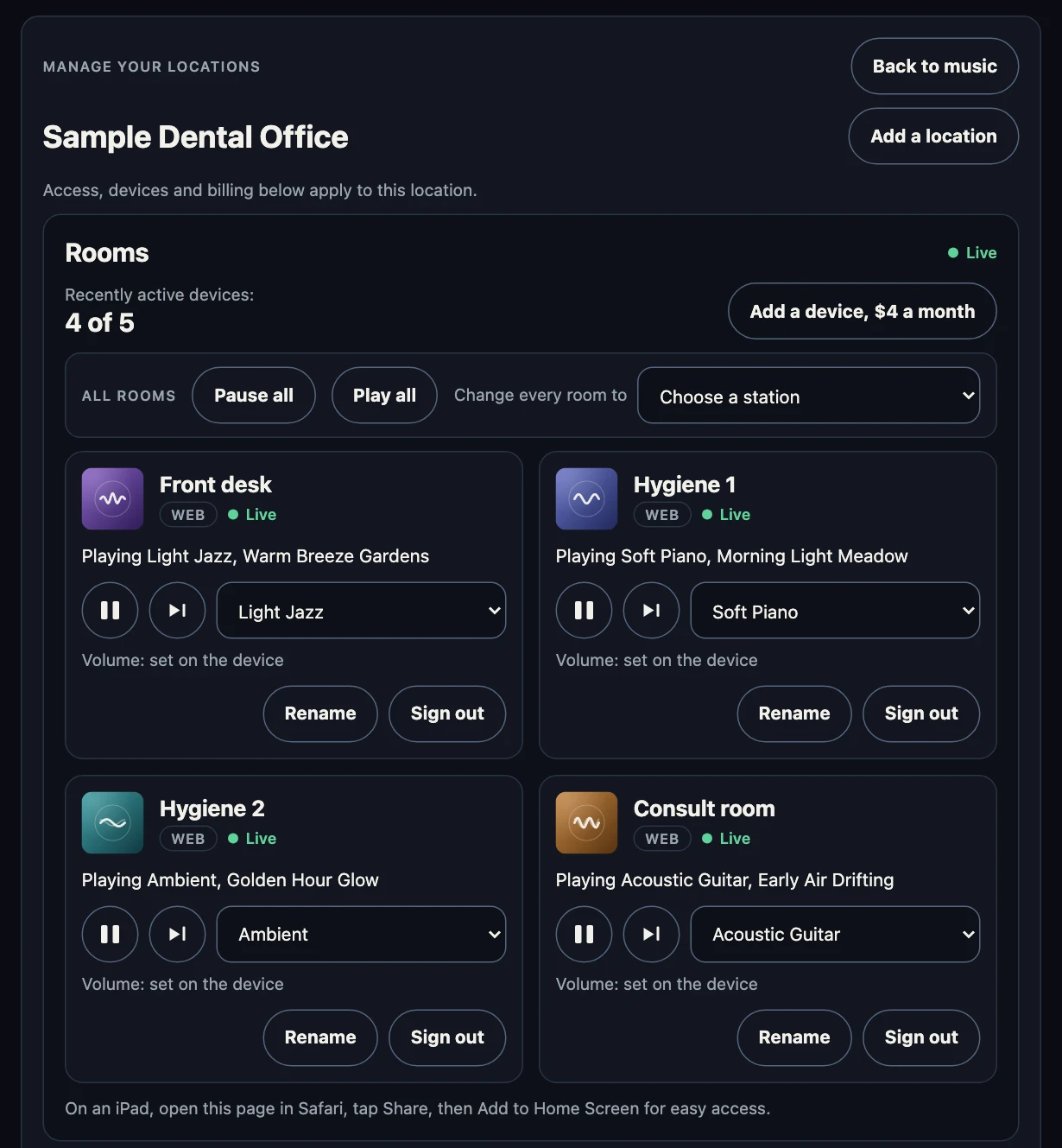
The location and its four rooms are a sample, not a customer. The stations, their artwork and the track titles come from the real catalog, as the eleMusic player showed them on October 12, 2026.
What do we need to play eleMusic?
A current web browser on a tablet, a laptop or a desktop computer, connected to the room's speakers or casting to its TV, and an internet connection. There is no music box to buy. We have not tested the web browsers built into smart TVs, so cast to a TV rather than opening the player in its browser: how to set up music in a dental office compares tablets, computers and TVs and says what to check on each. The music streams to each device, so every device that plays needs a working connection; if it drops, the player shows "Reconnecting" and keeps trying on its own.
You are responsible for the devices, speakers, internet connection, browsers and operating systems you use, and for any data charges. Not every device or browser is supported, and we may stop supporting older ones. Playing through a TV or speaker with a casting technology (such as Google Cast or AirPlay) depends on that third-party technology.
eleMusic Terms of Service, Section 7.4, effective October 11, 2026
Can the front desk control the music in every room?
Yes, for every room connected with the access code. The Rooms panel shows each room and lets the office change its station, play, pause or skip it, or pause, play or change the station in every room at once.
What each room shows in the panel
- The room's name, and whether it is Live, last seen a few minutes ago, or Offline.
- The station and track it is playing, and where the sound goes: on AirPlay, or on a Cast device by name.
- Why a room is not playing, when it is not: "Waiting for a free device", "Needs a tap on its screen", "Subscription needed" or "Reconnecting".
What the office can do
- For one room: choose a station, Play or Pause, Next, the volume of a room casting to a Chromecast, Rename, or Sign out (the device then needs the access code again).
- For every room: Pause all, Play all, or "Change every room to" a station.
While the panel is open, a command reaches a room within a few seconds. After an idle spell, the first command can take up to about 2 minutes. A room answers while eleMusic is open on it, and a paused room in a background browser tab may take about a minute.
Volume is set on the device or on the speakers, Safari on an iPad included, and the panel shows "set on the device". The exception is a room casting to a Chromecast: the panel shows the receiver's volume and can change it from the office. The "Recently active devices" counter at the top compares the devices that played recently with the plan's allowance.
Can a room play through a TV or a wireless speaker?
Yes for a Bluetooth speaker, and in supported browsers for casting. A Bluetooth speaker paired in the device's own settings plays the music like built-in speakers, with nothing to set in eleMusic. To send the music to a TV or a speaker on the network, use the button in the player: Cast in Chrome or Edge on a computer, or Chrome on an Android tablet, for a Chromecast, and AirPlay in Safari on a Mac, iPad or iPhone, for an AirPlay speaker or TV. Firefox has no casting button. Casting depends on the browser, the receiver and your network, and we have not tested every combination, so try it on your own TV or speaker before you rely on it.
The button shows only after a station has started, and in some browsers only once a receiver is found on the network. How to set up music in a dental office has the full browser table and what to check when the button does not appear. The same guide covers connecting a device to your speakers by cable, by Bluetooth or through an amplifier.
While a room casts, each track starts after a short pause on the receiver. The crossfade between tracks plays only on the device itself.
How does each room play its station?
- Its own order, every day. Each device plays the station's tracks in its own order, and the order changes every day.
- Tracks blend on the device. When the device plays the music itself, each track blends into the next over about 6 seconds. Casting adds a short pause between tracks, as above.
- Flag a track. If a track does not suit the room, "Flag this track" skips it and reports it to eleMusic.
- After a power cut. When the player opens again after a power cut or a browser restart, the room picks up its station where it left off in the day's order. Some browsers wait for one tap before they play sound: the screen then shows a "Tap to start" button, and the Rooms panel says "Needs a tap on its screen".
To match a station to the room, see music for the waiting room and music for treatment rooms.
What counts as a device?
A device is one stream: a tablet feeding the ceiling speakers in several rooms counts once. Any number of devices can join with the code; the plan sets how many play at the same time. Solo covers 1 device, Practice up to 5 devices and Clinic up to 15 devices, and extra devices are $4 a month each on any plan (list prices as of October 12, 2026). See pricing.
Any number of devices may join a Location with its Access Code, but only as many as the Location's Device Allowance may play at the same time. While playing, each Room Device checks in with our servers regularly (currently about every five minutes), and it holds a place in the Device Allowance while its check-ins are recent.
eleMusic Terms of Service, Section 7.2, effective October 11, 2026
A device that is paused or turned off stops checking in, and its place frees up about 10 minutes after its last check-in.
What happens when every device is already playing?
The next room does not play. It shows "All devices are in use" and asks staff to have their administrator add a device ($4 a month). It checks again every 5 minutes and starts on its own once a device is free.
In the Rooms panel, the owner or administrator sees the same limit and an "Add a device" button. Tap it and confirm:
An added device takes effect right away, and the prorated charge for the rest of the period is added to your next invoice.
eleMusic Refund and Cancellation Policy, Section 4, effective October 12, 2026
How do staff reopen the player and tell rooms apart?
- Add it to the Home Screen. On an iPad, open elemusic.fm/play in Safari, tap Share, then Add to Home Screen, so staff can reopen the player in one tap.
- Keep eleMusic in one tab. A second tab says "This room is open in another tab. Use that tab or close it to play here."
- Name every room. A name such as Reception, Staff lounge or Treatment room 2 makes the Rooms panel easy to read. You can rename a room from the panel later.
To keep a tablet's screen on, lock an iPad to the player and avoid private windows, follow how to keep a tablet playing music all day.
How does eleMusic work with more than one location?
Each location has its own plan, access code and certificate. One owner account can hold several: "Add a location" in Manage locations creates the next one and opens its plan, and a switcher chooses which location the panel shows. Every location with an active plan or trial gets an Original Catalog Certificate in its name (what the certificate covers). Each location gets at most one 14-day trial. Five or more locations take 15% off every location. See multi-location pricing.
Does the player have keyboard shortcuts?
Yes, on a device with a keyboard. The player's hint line names the main ones, and ? shows or hides it.
| Key | What it does |
|---|---|
| Space or K | Pause or play |
| N or Right arrow | Next track |
| Up or Down arrow | Raise or lower a Cast receiver's volume, while casting |
| Esc | Close the Manage locations panel |
| ? | Show or hide the shortcut hint |
A keyboard's own play, pause and next media keys work as well.
More setup questions
Can the music start and stop with office hours?
Not on a schedule today. A room plays once a station is picked, until it is paused on the device or from the Rooms panel. Step 5 at the top of this page has the closing and opening routine with Pause all and Play all.
What if the access code gets out?
Choose "Replace code" under Room access. It issues a new code and signs out every room device at the location, so reconnect each room with the new code.
Can each room play a different station?
Yes. Each device picks its own station, so every room with its own device can play something different. Two devices on the same station each play their own order.
Sources
- eleMusic Terms of Service, Sections 7.2 and 7.4 (effective October 11, 2026), accessed October 11, 2026
- eleMusic Refund and Cancellation Policy, Section 4 (effective October 12, 2026), accessed October 12, 2026
Hear it in your own rooms.
Eight instrumental stations and one access code, on a tablet or laptop in each room, or cast to your TV. From $15 a month for one device; Practice covers up to 5 devices for $24.
New locations start with a 14-day trial. A card is required and nothing is due at checkout. A reminder goes to the billing email before the trial ends, and you can cancel in Manage billing or by emailing hello@elemusic.fm. Unless you cancel before the trial ends, the card is charged the plan price when it ends. See the Terms of Service and the Refund and Cancellation Policy.